Showing posts with label iPad. Show all posts

Sunday, October 24, 2010

Too Busy

I've been too busy with my full time job (lecturing at St.Martin's Institute of I.T.) that I didn't progress anywhere with the balancing of the weapons.

I will probably rescale down the project into just a shooter without any storyline for the time being. Then we see how it will be received by the public and guide the project accordingly.

The major problem I'm seeing is that I had envisioned the big screen of the ipad to be a big plus when navigating and directing the shit with the accelerometer, however people get their forearms tired quite quickly. I had introduced the touch-joystick as well, but it's not the same feeling.

Monday, September 13, 2010

Using SpriteManager for Unity iPhone HUD/UI

The problem is the usual... having a draw call for each GUITexture that you put on screen. Of course there is SpriteManager to put all sprites into one mesh, and thus one draw call. Here is how I used it.
SpriteManager
Create a an empty GameObject and drag the SpriteManager script to it. Call the GameObject SpriteManager as well. Set the texture to point to your sprite sheet material and set the alloc block size to say 100. Also change it to CW from CCW.

Create a layer for the UI and make put the SpriteManager object in the UI layer.

Creating a Sprite Sheet
To create the sprite sheet I used Sprite Sheet Packer (only for Windows though), which given a set of images will generate for you the sprite sheet and also a text file containing the sprite sheet map which can be easily parsed. Each line of this text file will have imagename = x y width height.

I created the following sprite sheet map parser which returns a hashtable of the sprite's uv coordinates and dimensions indexed by the original image name


using UnityEngine;
using System.Collections;
using System;
using System.IO;

public class SpriteSheetMapParser : MonoBehaviour
{
public static Hashtable parse(string filename)
{
Hashtable h = new Hashtable();

try
{
// Create an instance of StreamReader to read from a file.
// The using statement also closes the StreamReader.
using (StreamReader sr = new StreamReader(Application.dataPath + filename))
{
String line;
// Read and display lines from the file until the end of
// the file is reached.
while ((line = sr.ReadLine()) != null)
{
int equalsIndex = line.IndexOf ('=');
//get the image name
string name = line.Substring(0, equalsIndex).Trim();
//and the uv coordinates and width height
string[] dimensions = line.Substring(equalsIndex+1).Trim().Split(' ');
Rect r = new Rect(int.Parse(dimensions[0]),
int.Parse(dimensions[1]),
int.Parse(dimensions[2]),
int.Parse(dimensions[3]));
//print(name+">>>"+r);
h[name] = r;
}
}
}
catch (Exception e)
{
// Let the user know what went wrong.
print("The file could not be read:");
print(e.Message);
}
return h;
}
}


The next thing was creating a singleton base class to be used by any sprite sheets you are going to use, as you may be using multiple sprite sheets. So each sprite sheet you would want to access would be another class extending this base class.


using System.Collections;

public class SpriteSheetSingletonBase {

private Hashtable spriteSheetMap;

protected SpriteSheetSingletonBase (string spriteSheetMapPath)
{
spriteSheetMap = SpriteSheetMapParser.parse(spriteSheetMapPath);
}

public Hashtable SpriteSheetMap
{
get
{
return spriteSheetMap;
}
}

}


For the sprite sheet used by the HUD I simply created this singleton


using UnityEngine;
using System.Collections;

public class SpriteSheetHUD : SpriteSheetSingletonBase{

private static SpriteSheetSingletonBase instance;

private SpriteSheetHUD () : base("/Textures/spritesheet.txt")
{

}

public static SpriteSheetSingletonBase Instance
{
get
{
if (instance == null)
{
instance = new SpriteSheetHUD();
}

return instance;
}
}
}

I created the parser class with just one static method that extends MonoBehaviour due to print mainly. I didn't want he sprite sheet singletons to extend MonoBehaviour and have extra baggage. I wanted the singletons to be plain old objects.

SpriteBase class
Next was creating a sprite base class which would be linked with any transform (empty gameobject) that would require some sprite to be drawn at that position. You then just need to specify the name of the sprite in your sprite sheet map. You also need to link the sprite manager object in your editor with the script, as you may have multiple sprite managers as well. Of course you can create a script which extends the SpriteBase class to animate the object etc.
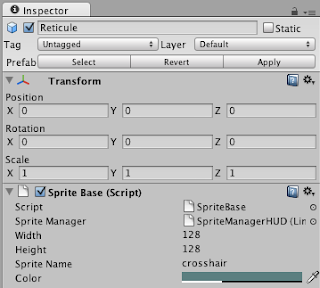


using UnityEngine;
using System.Collections;

public class SpriteBase : MonoBehaviour {

public SpriteManager spriteManager;
protected Sprite sprite;

public int width = 10;
public int height = 10;
public string spriteName;
public Color color = Color.white;
private Color oldColor = Color.white;

// Use this for initialization
void Start () {
Rect dimensions = (Rect)SpriteSheetHUD.Instance.SpriteSheetMap[spriteName];
sprite = spriteManager.AddSprite(gameObject, width, height,
(int)dimensions.x, (int)(dimensions.y+dimensions.height),
(int)dimensions.width, (int)dimensions.height,
false);
sprite.SetColor(color);
}

// Update is called once per frame
void Update () {
if (color != oldColor)
{
sprite.SetColor(color);
oldColor = color;
}
// transform.position = transform.position + new Vector3(1,0,0);
// sm.Transform(s);
}

public void RemoveSprite() {
print("spritemanager should be removing sprite");
spriteManager.RemoveSprite(sprite);
sprite = null;
}

public void HideSprite() {
spriteManager.HideSprite(sprite);
}

public void ShowSprite() {
spriteManager.ShowSprite(sprite);
}
}
Setting up a UI Camera
Create a new camera, call it UI Camera. Set the culling to just the UI Layer, so first select nothing, and then select the UI.
From the main Camera you will have to remove the UI layer too, so go the main camera and from the culling just unselect the UI layer.
Set the depth the UI Camera to 1 so it is rendered after the main camera.
Also change it to orthographic. I also pushed it to some negative value, e.g. -7 in the z direction.
I changed the size to 160 on an iPhone display, so the size of sprites that I give when creating them, maps to the rendered size on the screen. That 160 is actually the screen height/2. If you are developing for iPad and Retina displays you would need to do something like this.

camera.orthographicSize = Screen.height/2;

I put that in the camera's script Update() although it should be in the Start() however in the editor the Screen.height wouldn't have been changed on starting up, if the window is set to iPad and Maximize on Play.
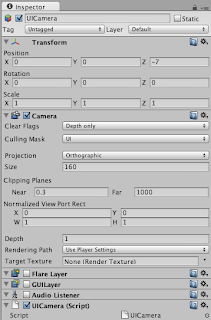


That should be it. Enjoy. Coming up next is how to do a radar.

Sunday, September 12, 2010

Last sprint was hijacked :)

The last sprint was completely changed. Some valuable feedback was coming in and I found it more important to address them rather than the features in the last sprint.

I implemented an auto locking system. It's now very easy to shoot down enemies IMO. I will probably put that on for Easy mode (whenever I implement difficulties that is)

I introduced a tutorial level instead. Still needs a lot of rework. In fact I got some more feedback on this too. The tutorial should be really small. The next iteration, the tutorial should be incorporated into a level and shooting should be very early in the tutorial. Navigation is not the fun part of the game but shooting is.

Also I should add a touch control system ASAP since I got some complaints, especially when playing on an iPad, that they get tired. Wimps! :)

So my next iteration will basically be
- get tutorial level right
- touch controls

Monday, September 06, 2010

Next HyperGlider sprint... BFG, Missiles, Overshield + gameplay tweaks

I'm releasing the first prototype to my close friends to play test it a bit.

I encountered a couple of problems, namely the framerate drop due to draw call for each sprite. So I started using SpriteManager for the HUD. I also implemented properly the radar. I will be posting a separate post on that. I also introduced an simple intro, where a draft comic strip is displayed and then a dialog is presented. All the graphics are drafts and will probably not make in the final version

While I will be waiting for some feedback I will be working on the next stuff:
- BFG... a huge blast that needs to recharge
- Missiles... lock on an enemy and shoot away
- Overshield... you can boost and blast into enemies
- tweak the gameplay to make it highly action packed

Thursday, April 01, 2010

SoundToy - iPad app in 24hrs


The story started when a day before a public holiday here in Malta (31st March), I got a reminder from Apple Developer Center to submit any iPad app for review for the great launch of the iPad. And I thought why not create something simple in just a 24hr - code jam. My wife was going to be busy doing figolli (traditional Easter sweets), so I said let me a do a coding marathon where in less than 24 hours I have to submit an iPad app. This wouldn't have been possible if I didn't have experience building Buttonia for the iPhone.

Problem 1: I didn't have Snow Leopard, so I bought it after finishing a tutorial with my students on that day. And that evening I installed it together with XCode 3.2 / iPhone SDK for the iPad. Installation went smooth, although took a while to finish due to updates. I still made a TimeMachine backup before just in case :)

Problem 2: What can I do in less than 24 hours? I thought what would I want to do if I had a big multitouch screen? I would want to touch it with both hands and swipe and do some nice visual effects. That would be quite easy to do. Then I said what if I add some sound to it? That would make it more engaging and it would be ideal for kids to play around with it. I'm not really an audio programmer, but a sine wave generator wouldn't be difficult to code. Then if I get some sales, I might add some more sound effects to it and improve it later.

Problem 3: I didn't have an iPad, so I was bound to use the iPad simulator which although it works, its a bit slow on my machine. Plus I cannot tilt it or shake it, or actually multitouch it. So once I had a semi-decent touch trail effect, and a sine-wave generator, whose pitch changes according to where you touch the screen, I ported the code into another project to try it out on my iPod Touch. Now I know I could have done a universal build, i.e. an app that works both on the iPod Touch and iPad, but I didn't want that as it is not the same thing when you have a small screen. The main idea of porting it was to test the multitouch, but also to hope that the sound glitches I was experiencing in the simulator where a bug in the simulator and not in my code. Obviously I was wrong! The sound glitch still occurred and it only occurred when a sound starts, and when it ends. It also wasn't working nicely when blending multiple sine waves.

As I said I'm no audio programmer, so probably this would have been a no-brainer for some experienced audio programmers. The problem was in fact in the blending of the waves. I didn't want to use (A+B)/2, where A and B are two samples, because if one of them is silence, then outcome would be half the volume. I tried this as a test, even though it might half the volume and with this I didn't have any glitches. So I concluded my blending formula of (A+B) - A.B (not exactly this, but a variant of it), was not working right. My mind was already slowing, especially after coding an all-nighter with just 4 hours of sleep (5am - 9pm). I tried to find on the internet how to do correct blending. I discovered a lot of other unrelated algorithms, but not what I wanted. After telling the problem to my wife, I got to the solution :). Basically I used A*a/t+B*b/t where a is the current sine wave's volume, b is the previous waves' volume and t is the total volume (a+b). Now consider A as being the current wave we are mixing, and B as the previous wave (which is a mix of other waves). Then b is simply the maximum volume of all the waves mixed so far. This is probably not the correct way how to do, but I was pressed with time. It worked and no glitches :)

The polishing stage was the shortest cycle I have ever done on any project. There wasn't much to polish since it was a small project. I just added some concepts like double tap to hold a note, and shaking to clear the notes. Then made a quick logo and some simple text instructions while the app is loading.

All in all, it was a fun coding experience. I learned a lot, and definitely I need to get my hands deeper into audio programming/DSP. Waiting for Apple's review...